Wi-Fiパスワードを見つける方法
デバイスがすでにWi-Fiに接続されている場合、パスワードはどこかに保存されているので、何もリセットする必要はありません。各プラットフォームでの探し方、およびまだ何も接続されていない場合にルーターから直接取得する方法を説明します。
Before you start troubleshooting, run the actual test so you know what's broken.
Run the ネットワークテスト始める前に
- ネットワークに既に接続されているデバイスが少なくとも1台必要です。または、ルーターへの物理的なアクセスが必要です。
- ほとんどのプラットフォームでは、保存されたWi-Fiパスワードを表示するために管理者パスワードまたはデバイスのPINが必要です。これはセキュリティ対策であり、バグではありません。
- 再接続したら、当社の ネットワークテスト を実行して、接続が単に確立されただけでなく、実際に正しく機能していることを確認してください。
Windows 11で探す
- Right-click the Wi-Fi icon in the taskbar and choose "Network & internet settings".
- Click "Advanced network settings" > "More network adapter options", or go to Settings > Network & internet > Advanced network settings.
- Alternatively, open Control Panel > Network and Sharing Center > click your Wi-Fi network name > Wireless Properties > Security tab.
- 「文字の表示」ボックスにチェックを入れると、パスワードが平文で表示されます。
If Control Panel feels dated, you can also open Command Prompt as administrator and run netsh wlan show profile "NETWORK-NAME" key=clearで、出力内の「キー コンテンツ」を探します。
macOSで探す
- Spotlight (Cmd+Space) を開き、「キーチェーンアクセス」を検索します。
- キーチェーンアクセスの検索バーに、Wi-Fiネットワークの名前を入力します。
- 一致するエントリをダブルクリックし、「パスワードを表示」にチェックを入れます。
- プロンプトが表示されたら、Macのログインパスワードを入力してください。これにより、本人確認が行われます。
Androidで探す
- Open Settings > Network & internet > Internet (or Wi-Fi).
- 接続しているネットワークの横にある歯車アイコンをタップします。
- 「共有」をタップすると、QRコードが生成され、多くのAndroidバージョンではその下にパスワードがテキストとして表示されます。
- 一部のメーカーは、平文のパスワードを指紋認証またはPINのプロンプトの背後に隠すことがありますが、これは想定されている動作です。
iPhoneで探す
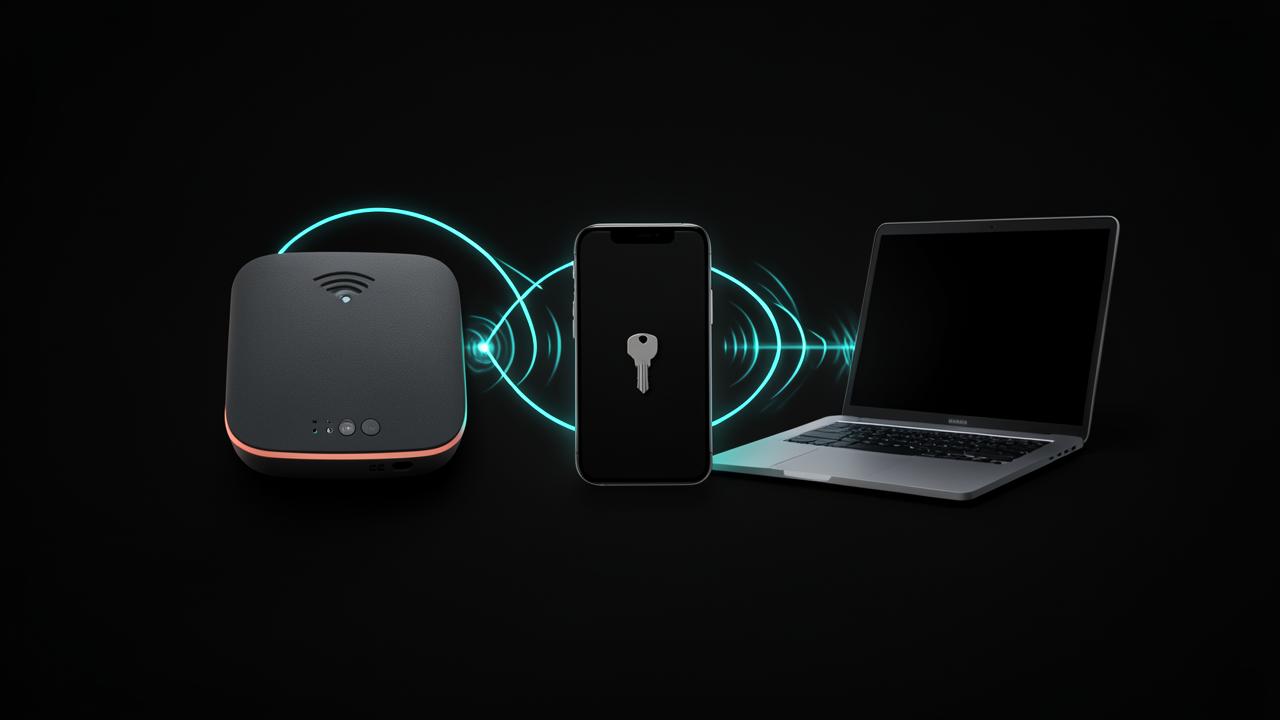
iPhoneは設定で保存されたWi-Fiパスワードを直接表示しませんが、取得するための信頼できる方法が2つあります。
近くのすでに接続されているiPhoneまたはMacから共有する
- 接続されているデバイスで、Wi-FiとBluetoothの両方がオンになっており、iCloudにサインインしていることを確認してください。
- On the new device, go to Settings > Wi-Fi and tap the network name to attempt to join.
- 既に接続されているデバイスにパスワード共有のプロンプトが表示されるはずなので、「パスワードを共有」をタップします。
Macをお持ちの場合、キーチェーン経由で
iPhoneとMacがiCloudキーチェーンを共有している場合、iPhoneに保存されたWi-Fiパスワードは、上記のmacOSのセクションと同じ手順でMacのキーチェーンアクセスアプリを通じて表示できることがよくあります。
ルーターから直接取得する
どのデバイスも接続されていない場合は、情報元を確認してください。
- ルーター本体のステッカーを確認してください。ほとんどのルーターには、底面または背面にデフォルトのネットワーク名とパスワードが印刷されています。
- デフォルトから変更されている場合は、イーサネットケーブルでコンピューターをルーターに接続し、ブラウザで通常192.168.0.1または192.168.1.1にある管理ページを開いてください。
- ルーターの管理者認証情報(Wi-Fiパスワードとは別に、ステッカーに記載されていることも多い)でログインし、「ワイヤレス」または「Wi-Fi設定」の項目を確認してください。
- 当社の Public IP & Location ルーターの設定を深く掘り下げる前に、自分がどのネットワークにいるかさえ不明な場合に役立つツールです。
それでも復元できない場合
- 最終手段として、通常10秒間押し続ける小さなリセットボタンを使ってルーターを工場出荷時の設定にリセットできます。これによりステッカーに印刷されたデフォルトのパスワードが復元されますが、カスタム設定もすべて消去されます。
- 工場出荷時の設定にリセットした後、パスワードを新しいものに変更し、すべてのデバイスで一度に更新してください。
- ISPがルーターを管理している場合、そのアプリやアカウントポータルで、物理的なアクセスなしに現在のWi-Fi認証情報が表示されることがよくあります。
Why the password is easier to recover than to reset
People often reach for the router reset button first, and it is almost always the worst option. A factory reset wipes the network name, the password, port forwarding rules, guest network settings, parental controls and any custom DNS configuration, then forces you to reconnect every device in the house. Since any device already connected is storing the password locally, recovery is nearly always possible without touching the router at all.
Operating systems protect stored passwords behind an administrator prompt rather than hiding them entirely, because the intention is to stop a passing stranger reading credentials off an unlocked screen, not to stop the owner. If you can authenticate as the machine's owner, you can see the password. That is the principle behind every method in this guide.
Choosing the right method for your situation
Pick the approach that matches what you have access to, rather than working through every option.
- A connected Windows PC and administrator rights: use the network properties dialog or the command line, this is the fastest route and shows plain text immediately.
- A connected Mac: Keychain Access, which also covers passwords synced from an iPhone through iCloud Keychain.
- A connected Android phone: the share option, which produces a QR code and often the password beneath it.
- Only an iPhone connected: use the password sharing prompt to bring a new device online, or read it through a Mac sharing the same iCloud Keychain.
- Nothing connected at all: the router sticker first, then the router admin page over an Ethernet cable.
If a QR code is all you can get, that is usually enough. Point the new device's camera at it and most modern phones will offer to join the network directly, no typing required.
Understanding what you find
Router admin pages present several credentials that people routinely confuse. The Wi-Fi password, sometimes labelled the network key, pre-shared key or WPA key, is what devices use to join. The admin password protects the router settings page itself. On many routers both are printed on the sticker but they are different strings, and typing one where the other belongs produces a confusing failure.
- SSID is simply the network name you see in the list of available networks.
- WPA2 or WPA3 is the security standard, newer is better, and mixed mode keeps older devices working.
- Some routers run separate 2.4GHz and 5GHz networks with different names but usually the same password.
- A guest network has its own password entirely and often blocks access to printers and shared drives.
Setting a password worth keeping
If you do end up changing the password, choose something you will not have to recover again. Length beats complexity for Wi-Fi keys, since they are typed rarely and stored permanently. Three or four unrelated words joined together is both stronger and far easier to read aloud to a guest than a random string of symbols.
- Use at least sixteen characters, and avoid the street address or family names that a neighbour could guess.
- Store it in a password manager under the network name, so future recovery takes seconds.
- Write it on a card kept near the router for guests rather than sharing your main credentials verbally.
- Enable WPA3 if every device supports it, and keep WPA2 as a fallback if older equipment needs it.
- Change the router admin password too, the default is published online for every common model.
After changing anything, reconnect one device and confirm the connection genuinely works rather than just showing connected. A speed and latency check catches the case where the network joined successfully but the internet connection behind it is down for an unrelated reason.
Common questions about recovering a Wi-Fi password
Is it safe to view a saved Wi-Fi password?
Yes, on a device you own and control. The administrator prompt exists to prevent someone with brief physical access reading credentials off an unlocked machine, not to prevent the owner from managing their own network. Just avoid doing it on a shared or public computer, where the revealed password can remain visible on screen or in a command history.
Why does the password work on some devices but not others?
Older devices often support only the 2.4GHz band or older security standards. If your router runs WPA3 only, or a 5GHz network with a different name, an older printer or smart plug will fail with the correct password. Enabling mixed WPA2 and WPA3 mode, or a dedicated 2.4GHz network, usually resolves it.
Can I share Wi-Fi without revealing the password?
Yes. Android and iPhone both generate a QR code that joins the network without displaying the characters, and many routers offer a guest network with a separate password you can change freely without disrupting your own devices. For visitors, the guest network is the better answer every time.
What if the router sticker password no longer works?
Someone changed it, which is good practice. Log into the router admin page from a wired connection and read or reset the wireless key there. Only use the physical reset button as a genuine last resort, since it erases every custom setting alongside the password.
Keep a record so you never search again
The reason this problem repeats is that nobody writes the password down anywhere durable. Five minutes of record keeping now removes the whole task permanently, and it also makes the network easier to hand over if someone else ever needs to manage it.
- Store the network name, wireless key, router admin address and admin password together in a password manager entry.
- Photograph the router sticker and keep the image in the same entry, defaults are useful after any reset.
- Note the router model and firmware version, which speeds up any future support conversation considerably.
- Keep a printed card near the router with the guest network details only, so visitors never need your main key.
- Repeat the record after any password change, an out of date note is worse than none at all.
Once the record exists, verify it. Join a device that was not previously connected using only the written details, then confirm the connection genuinely reaches the internet rather than simply showing connected. A quick speed and latency check settles that in seconds and proves the note is accurate.